
- Joined
- 11 Oct 2012
- Local time
- 8:12 PM
- Messages
- 21,952
- Location
- SE Australia
- Website
- www.satnavsaysstraighton.com
There are 3 ways to add pictures to a post.
Option 1 - Attach Files
The "Attach files" button is single-use. That means the file(s) you upload to your post can only be displayed in that post and nowhere else. If you want to display the same image in a second thread, you will need to upload it again (which we do not recommend).
The system does not recognise that the image is the same, so uploading it twice doubles the disk space used. For this reason, resolution (pixels) and file sizes (MB) are smaller when uploading directly to a post than when using the Media Gallery.
The current restrictions are 1,200×1,024 pixels and 6Mb per file. There is also a 6-attachment limit per post. If you want larger images or more images in your post, you'll need to use the media gallery.
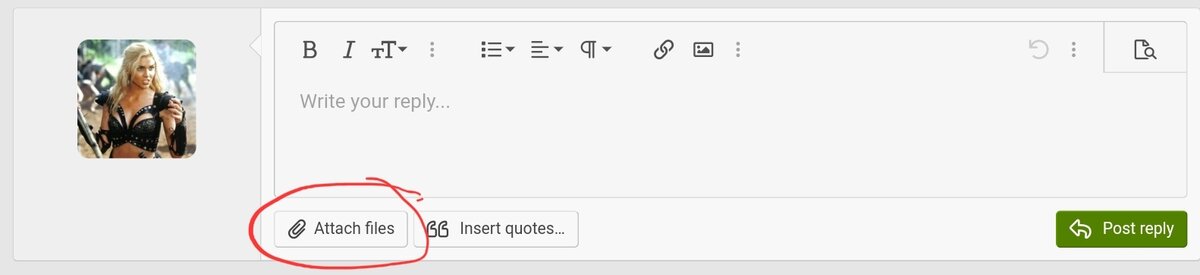
1. Click the button " Attach files" and follow the steps specific to your device.
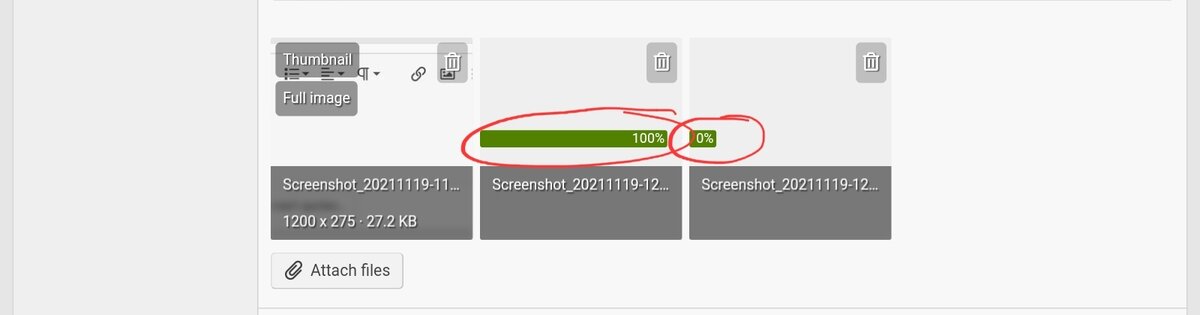
2. You'll see the image(s) uploading. Wait until the green bar disappears and is replaced by the word "Insert..."
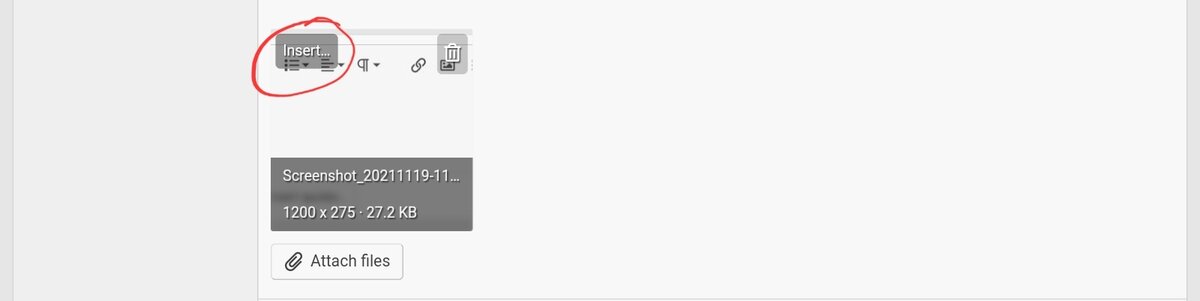
3. You need to tell the system how and where to display the image in your post. You have two options: thumbnail or full image.
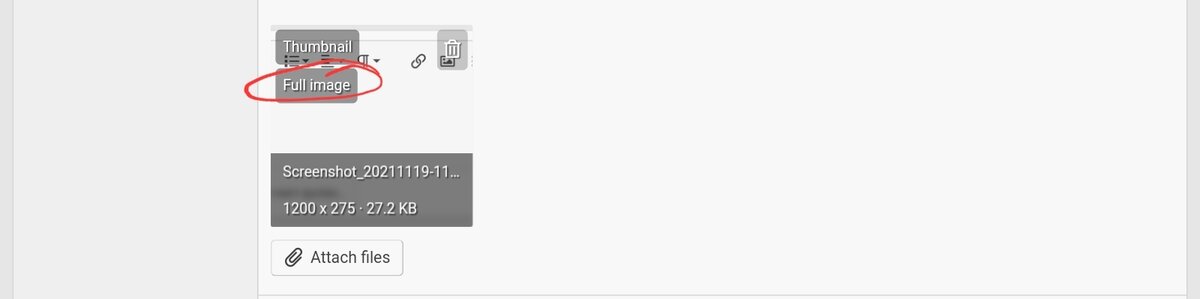
4a. If you have one image, on the thumbnail of your photo click "Insert...". "Insert" will now change to "Thumbnail" and "Full Image". Click the one you want, and the image will be inserted at your cursor's last position.
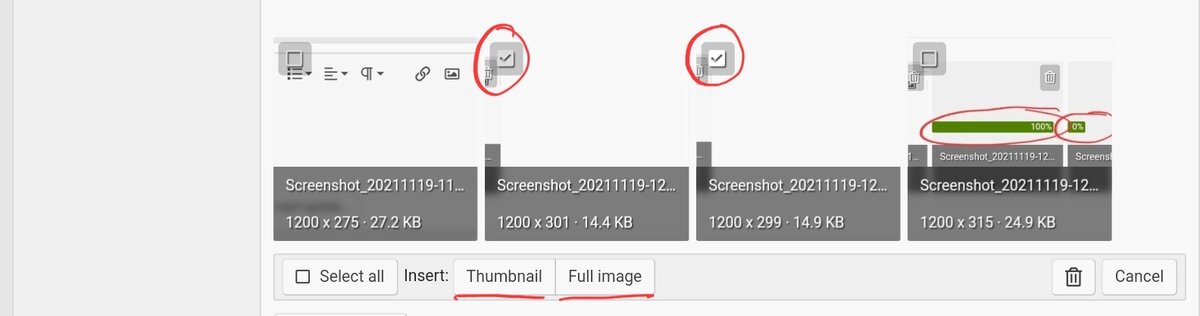
4b. If you uploaded more than one image, you'll see an "Insert multiple ..." button. If you click on it, you can tick the photos you want adding in one go. Next, select the size, and they will all turn up in the order they were shown. If you require a different order, you will need to select images one at a time (4a) and insert them manually.
Finally, if you forget to add an attachment, it will automatically be added as a thumbnail to the end of your post.
- The first and most obvious option is the "Attach Files" button. It is also the easiest option.
- The second option is to use the media gallery on this site.
- The final option is to embed or link to a picture on another site.
Option 1 - Attach Files
The "Attach files" button is single-use. That means the file(s) you upload to your post can only be displayed in that post and nowhere else. If you want to display the same image in a second thread, you will need to upload it again (which we do not recommend).
The system does not recognise that the image is the same, so uploading it twice doubles the disk space used. For this reason, resolution (pixels) and file sizes (MB) are smaller when uploading directly to a post than when using the Media Gallery.
The current restrictions are 1,200×1,024 pixels and 6Mb per file. There is also a 6-attachment limit per post. If you want larger images or more images in your post, you'll need to use the media gallery.
1. Click the button " Attach files" and follow the steps specific to your device.
2. You'll see the image(s) uploading. Wait until the green bar disappears and is replaced by the word "Insert..."
3. You need to tell the system how and where to display the image in your post. You have two options: thumbnail or full image.
4a. If you have one image, on the thumbnail of your photo click "Insert...". "Insert" will now change to "Thumbnail" and "Full Image". Click the one you want, and the image will be inserted at your cursor's last position.
4b. If you uploaded more than one image, you'll see an "Insert multiple ..." button. If you click on it, you can tick the photos you want adding in one go. Next, select the size, and they will all turn up in the order they were shown. If you require a different order, you will need to select images one at a time (4a) and insert them manually.
Finally, if you forget to add an attachment, it will automatically be added as a thumbnail to the end of your post.
Last edited: